ACP Skills
The ACP Skills tab is used to monitor and manage skill runs executed through the ACP backend. Unlike ACP Chat's continuous dialogue, ACP Skills is designed for one-off or periodically executed skill tasks.
Interface Overview
The ACP Skills panel is divided into the following main areas:
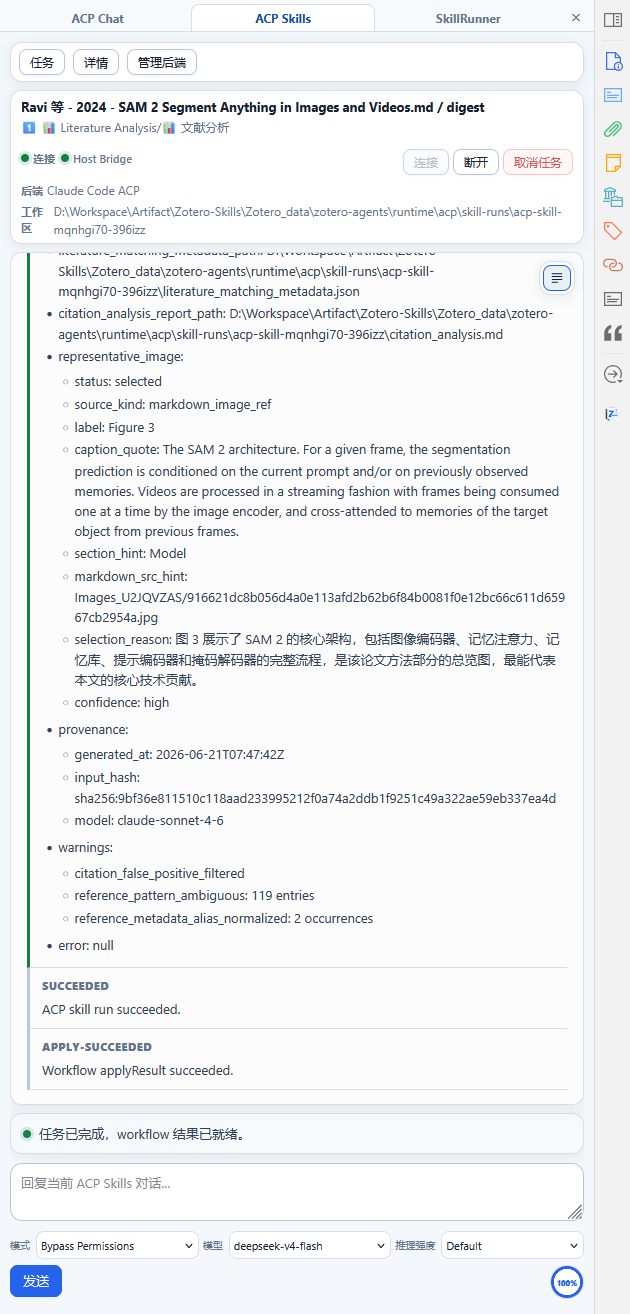
┌─────────────────────────────────────┐
│  Banner: Task Title / Status / Backend   │
├─────────────────────────────────────┤
│  ← Run Drawer  │  Main Content Area  │  Details → │
│               │  Transcript View            │
│  Running      │  Plan Component             │
│  └─ backend1  │  Prompt Component           │
│     ├─ run A  │  Reply Area                 │
│     └─ run B  │                             │
│  Completed    │                             │
│  └─ backend1  │                             │
│     └─ run C  │                             │
└─────────────────────────────────────┘
Banner
The Banner area displays meta-information and action buttons for the currently selected run:
- Task Title: The skill name of the run
- Status: Run status indicator (running / completed / failed / canceled, etc.)
- Backend: The ACP backend executing the run
- Action Buttons: Connect/Disconnect, Cancel Task
Run Drawer (Left)
The left drawer organizes all ACP Skill Runs in a tree structure:
Grouping
| Group | Description |
|---|---|
| Running | Currently running tasks, grouped by backend |
| Completed | Finished tasks, grouped by backend |
Each task entry displays summary information (skill ID, status, time) and has an attention indicator (LED) to mark status changes. Click any task entry to switch to the detail view of that run.
Archiving
Completed tasks can be removed from the list via the archive button (archiving only hides them in the current session and does not affect run records).
Main Content Area
Transcript View
After selecting a run, the main content area displays the full transcript of that run, including:
- Messages: Assistant and user dialogue content
- Tool Calls: Tools invoked by the AI and their results, showing tool name, input summary, and status LED
- Thinking Process: The AI's reasoning process (if available)
- Status Events: State changes during the run
The transcript supports Plain mode (messages colored by role on the left border) and Bubble mode (messages in bubble style, consecutive tool calls automatically collapsed into groups), toggled via the button in the top-right corner.
Plan Component
When a run includes a multi-step plan, the plan component displays current progress, completed steps, and pending steps, with each step having a status icon (in-progress/completed/failed).
Prompt Component
The prompt component displays different interactive prompts based on run status:
| Status | Display Content |
|---|---|
waiting_user | Prompt awaiting user reply, with context description and quick reply options |
permission | Permission request prompt, with command preview and approve/reject buttons |
disconnected | Reconnection prompt; click to connect |
running | In-progress indicator |
completed | Completion status confirmation |
error | Error information and troubleshooting suggestions |
Reply Area
The reply area at the bottom contains:
- Text Input Box: Enter reply content
- Mode Selection (optional): Run mode toggle
- Model Selection (optional): AI model toggle
- Reasoning Effort (optional): Reasoning effort level
- Send/Cancel Button
- Usage Meter: Circular chart showing token usage (used/limit)
- Keyboard Shortcut Hint: Keyboard shortcut for sending replies
Reply drafts are saved per request — switching runs and switching back preserves unsent content.
Details Drawer (Right)
The right drawer displays detailed information about the selected run, with the following collapsible areas:
| Area | Content |
|---|---|
| Run Path | Workspace directory, result file paths |
| Runner Info | backends, agent, mode, model, reasoning, skill, session |
| Validation Info | Validation status, fix count, error details |
| Runtime Dependencies | List of runtime environment dependencies |
| Output Revision | Output revision history |
| Runtime Log | Log entries during the run |
| Result JSON | Final structured output (expandable) |
Permission Handling
When a run requires Zotero write permissions or ACP tool call permissions, the prompt component displays a permission request:
- Command Preview: Shows the operation being requested
- Source Info: Who initiated the request
- Action Buttons: Approve / Reject
- Expand to view full request details
Related Configuration
The ACP Skills panel requires an ACP backend to be configured before use.