ACP Chat Usage
Functionality
ACP Chat allows you to converse with a configured ACP backend, with conversation context drawn from the Zotero item you are currently viewing or the paper in the reader.
Use Cases
- Literature Q&A: Ask questions about the paper you are currently reading, get explanations and summaries
- Writing Assistance: Get suggestions during the writing process
- Quick Lookup: Quickly retrieve key information about a specific paper
- Batch Processing: Perform batch analysis on multiple items in a literature list
Interface Layout
The ACP Chat panel contains the following areas:
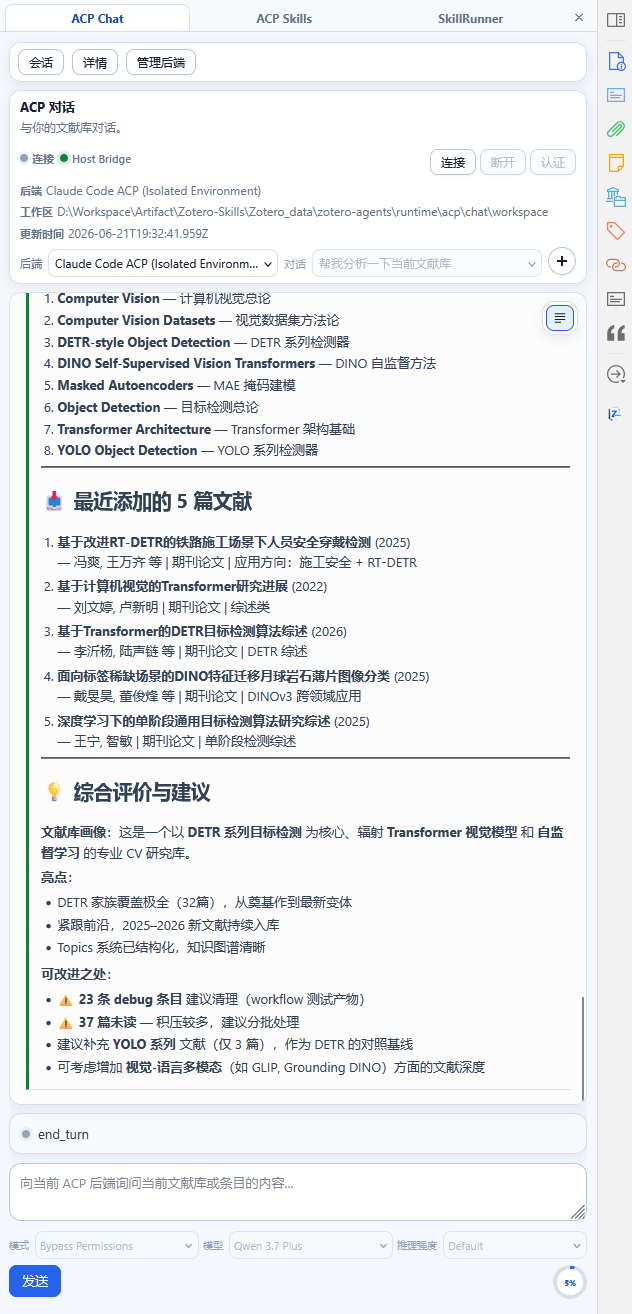
┌──────────────────────────────────────────┐
│  Banner                                  │
│  Backend ▼  |  Session ▼  | [Connect] [+] │
│  Status:   ● Connection | ● MCP | ● HostBridge  │
├──────────────────────────────────────────┤
│  ← Session Drawer  │  Transcript View  │  Details →  │
│                    │  [Toggle Plain/Bubble]    │
│  Backend A         │  Conversation messages... │
│  ├─ Session 1      │  Plan Component           │
│  └─ Session 2      │  Prompt Component         │
│  Backend B         │  Reply Area               │
│  └─ Session 3      │  Text input + Send/Cancel │
│                    │  Mode ▼ | Model ▼ | Reasoning ▼│
│                    │  ⭕ Usage 12.3k/200k   │
└──────────────────────────────────────────┘
Banner
The Banner is at the top of the panel, providing core control functions:
Backend Selection
A dropdown lists all configured backends, each showing a status suffix (Connecting/Connected/Disconnected). Switching backends automatically switches to that backend's session.
Session Selection
A dropdown shows the most recent 8 sessions (sorted by time); selecting one switches to that session. When there are more than 8, "Show more..." appears at the bottom; clicking it opens the session drawer to view the full list.
Connection Controls
- Connect/Disconnect Button: Manually manage the current backend's connection state
- Auth Button: Shown when the backend requires authentication
- New Session (+): Create a new session on the current backend
Status Indicators
The right side of the Banner shows three status indicator lights:
| Indicator | Description |
|---|---|
| ● Connection | Connection status with the ACP backend (green=Connected/gray=Disconnected/yellow=Connecting) |
| ● MCP | MCP service availability |
| ● Host Bridge | Zotero Host Bridge connection status (see below) |
Host Bridge Status
Host Bridge is an internal bridge channel between the Zotero plugin and the backend. It is responsible for passing the current Zotero context (selected items, paper in the reader, library data, etc.) to the backend, enabling the AI to operate based on your actual Zotero data.
Host Bridge communicates through the zotero-bridge CLI tool; the plugin manages its lifecycle automatically in the background.
| Status | Meaning |
|---|---|
| Green ● | Host Bridge is connected; the backend can access Zotero context |
| Yellow ● | Connecting or reconnecting |
| Gray ● | Host Bridge is unavailable (not installed or not started); the backend cannot obtain Zotero context |
| Hidden | Host Bridge is not needed currently (e.g., backend doesn't support it or context features are not enabled) |
When Host Bridge is unavailable, ACP Chat can still function normally, but the AI cannot access information about the paper you are currently viewing as context.
Session Drawer (Left)
The left drawer displays all historical sessions grouped by backend. Each session entry shows a title and last active time.
- Switch Session: Click a session in the list to load it
- New Session: Operate from the top of the drawer or the Banner
Transcript View
Conversation Messages
Conversation messages support Markdown rendering, including:
- Code Blocks: With syntax highlighting and a copy button
- Math Formulas: LaTeX formulas rendered with KaTeX
- Lists, Tables, Links, and other standard Markdown elements
Tool Calls
When the AI invokes a tool, a tool call entry is displayed in the transcript:
- Tool name badge
- Input parameter summary
- Execution status LED (waiting/in-progress/completed/failed)
- In Bubble mode, consecutive tool calls are automatically collapsed into a "tool activity group"
Thinking Process
The AI's reasoning process is displayed as a separate "Thinking" block, distinct from the formal reply.
Display Mode Toggle
The toggle button in the top-right corner lets you switch between two modes:
| Mode | Description |
|---|---|
| Plain | Messages are colored by role on the left border, suitable for browsing long conversations |
| Bubble | Messages are displayed in bubble style, consecutive tool calls are automatically grouped, suitable for reading |
Plan Component
When a conversation includes a multi-step plan, a plan progress bar is displayed above the transcript, marking completed, in-progress, and pending steps.
Prompt Component
The prompt component is displayed when user interaction is required:
- Permission Requests: When the backend needs Zotero access permissions, shows request details and approval buttons
- Connection Prompt: When disconnected, shows a reconnection suggestion
- Error Prompt: Shows error information and recovery actions
Reply Area
Text Input
- Multi-line Text Box: Supports long text input
- Enter to Send: Press Enter to send a message
- Shift+Enter for Newline: Insert a line break
- Reply History: Press up/down arrow keys to browse sent messages
Run Mode
Above the reply area you can select:
| Option | Description | Available Values |
|---|---|---|
| Mode | Run mode | Defined by the backend |
| Model | AI model | List of models supported by the backend |
| Reasoning Effort | Reasoning effort level | Low/Medium/High (if supported by the backend) |
Usage Meter
A circular usage meter is shown in the bottom-right corner of the reply area:
- Outer Ring: Percentage of current session token usage against the limit
- Text:
Used k / Limit k - Color changes with usage level (Normal → Warning → Critical)
Keyboard Shortcut Hints
Keyboard shortcut hints are displayed inside the input box.
Details Drawer (Right)
The right drawer displays detailed information about the current session:
| Area | Content |
|---|---|
| Session Info | Session ID, creation time, last active time |
| Backend Info | Backend type, address, model |
| Workspace Path | Session workspace file path |
| Diagnostics | Debug and diagnostic data |
Library Context vs Reader Context
ACP Chat supports two context modes; the plugin automatically detects the current context type and passes it to the backend:
| Mode | Description | Use Cases |
|---|---|---|
| Library Context | Based on items currently selected in the Zotero item list | Quick reference while browsing the library |
| Reader Context | Based on the full text of the paper currently open in Zotero Reader | Contextual understanding needed during deep reading |
Session Management
- Conversation history is automatically persisted
- Multiple sessions per backend are managed independently
- Historical sessions can be viewed in the Dashboard or sidebar
- Backend-grouped session list is supported
Notes
- An ACP backend must be configured first
- Conversations on different ACP backends do not interfere with each other
- Conversations are associated with Zotero items for easy later reference